http://tuckbox.gameupdates.com

How To Use
This Program
Printing Cutting & Folding
A Tuck Box
Problems?


    HOW TO USE THIS PROGRAM
STEP ONE

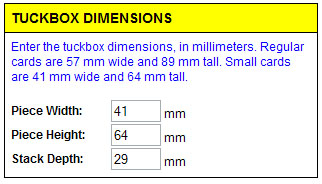
First, you will need to determine the dimensions of the cards or pieces.  I recommend printing this out for making measuring much easier:
Printable Measurement Sheet (vendian.org)

STEP TWO

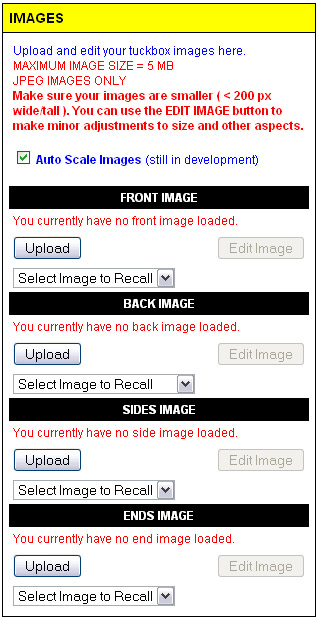
Next, upload the images for your tuck box. 

MAXIMUM FILE SIZE 5 MB
RECOMMENDED SIZE < 1 MB
ONLY JPG IMAGES ARE COMPATIBLE


Currently in development (but appears to work pretty well) is the Auto Scale Images feature. A lot of people uploaded their images way too big, and caused the tuckbox to be generated with huge images. Auto Scale Images tries to fix this situation by automatically scaling down images to fit in the tuckbox sections. Note that there is no constraining of proportions, so images may be distorted when using this option. (There is currently no auto scaling performed on the back image)

To upload images, click the "Upload" button for the section you want to upload for. A popup will appear which will allow you to browse your computer and upload your image file.

FRONT IMAGE
This will be shown on the front of the box.

BACK IMAGE
This will be shown on the back of the box. Usually, this will be a picture of the cards contained in the tuckbox. There is no auto scaling of this image.

SIDES IMAGE
This will be shown on the sides of the box. The program will automatically rotate the images.

ENDS IMAGE
This will be shown on the bottom and the top of the box.


STEP THREE

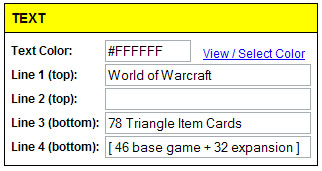
Here you can select the text color, along with the text you would like to include on the box.  Lines 1 & 2 will be shown above the piece image.  Lines 3 & 4 will be shown below the piece image.

STEP FOUR

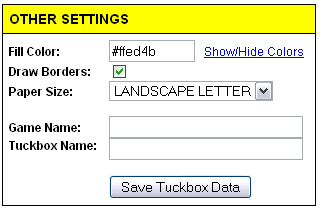
Here you can specify the main color of the tuck box.  Draw borders allows you to turn off the black borders that are drawn as a guide for cutting. Paper size allows you to adjust the paper size.  Finally, you can save the tuck box by entering a game name and a tuck boxname and clicking the "Save Tuckbox Data" button. Click the "Create PDF" button to create the tuck box.

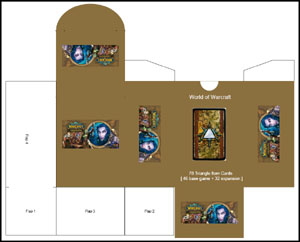
Example Tuck Box: